Creating Staff Reader Board Notes
The Staff Reader Board screen allows users to create notes about the day's events or any other preferred information and share them with other users across all departments in the property. Additionally, if preferred, the user can choose to make the created note appear as a pop-up message when respective users log on.
Breakpoint: 20035 - Staff Reader Board (Engineering - Utilities)
-
Navigate to Settings à Utilities à Staff Reader Board.
-
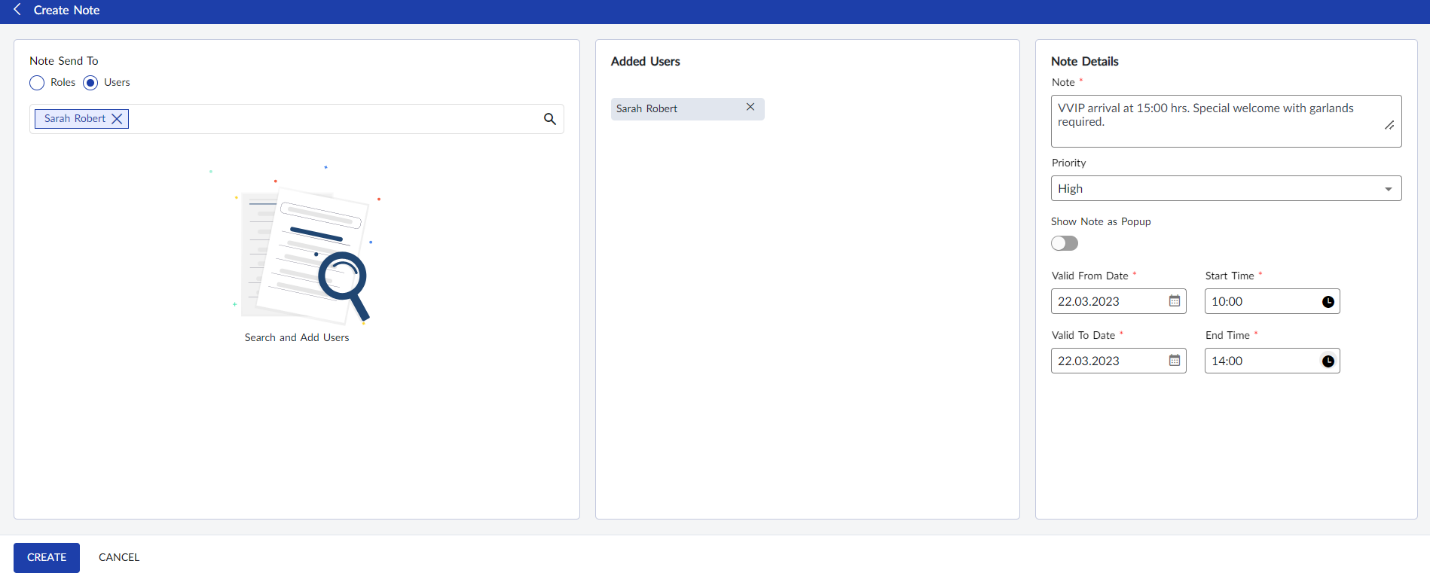
Click Create. The Create Note screen appears.
-
Refer to the following table and fill in the fields:
|
Field |
Description |
|---|---|
|
Note Send To |
Search for and select preferred users to whom the note must be sent. Available options include:
|
|
Added Users |
Names of selected users appear in this pane. |
|
Note Details |
|
|
Note |
Notes about day's events or any other preferred information can be entered here as preferred. Values up to 500 words can be entered. |
|
Priority |
Select a preferred priority for the note. Available options include the following: High, Medium, and Low. |
|
Show Note as Popup |
When enabled, the text entered in the Note field will appear as a pop-up when the user with whom the note has been shared logs on. |
|
Valid Date From |
The date starting from when selected users must be informed about the added note. |
|
Valid To Date |
The ending date until when selected users must be notified about the added note. After the end date, the note will expire and will not appear as a pop-up irrespective of whether the note is acknowledged or not. |
|
Start Time |
The time of the selected date from when the added note will be displayed (either as a pop-up or under Notifications icon) to other users. |
|
End Time |
The time of the selected date until when the added note will be displayed to other users. |
-
Click Create. The note is sent to respective users.
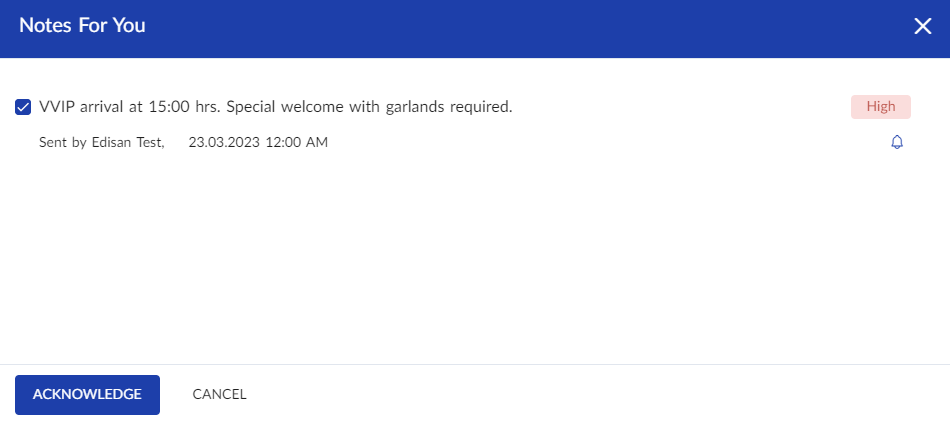
If the Show Note as Popup flag was enabled for the created note, the text entered in the Note field will appear as a pop-up when respective users log on. The user can click Acknowledge and mark the note as viewed. This message will appear every time the user logs in until the note is valid or until the note is acknowledged.
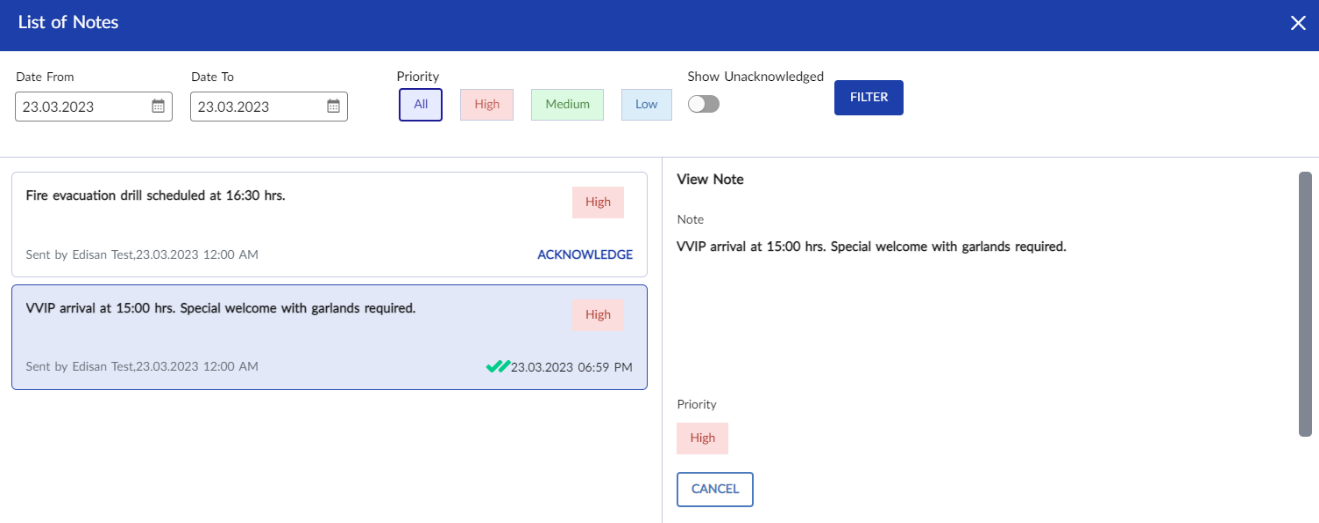
The user can also click the Notes icon in the Home page to view all messages received at once.